How to Sign In
To use Pescle Rodents, sign in from the sign-in page. If you have not registered as a user yet, see When You Receive an Invitation Email first.
Sign-In Steps
Fill in each field on the sign-in page and click the [signIn] button.
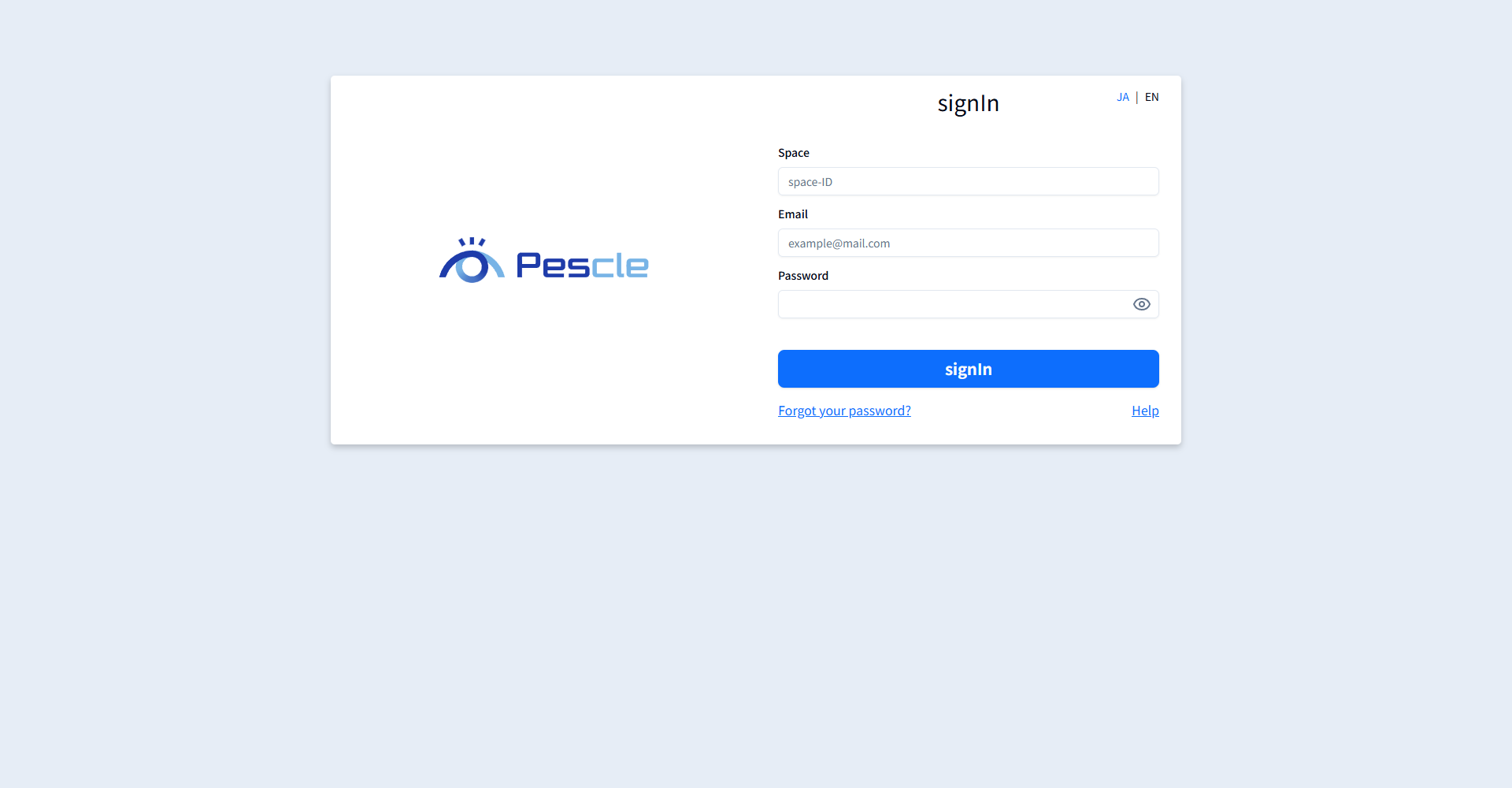
Field |
Description |
|---|---|
Space |
The name defined for each company using Pescle Rodents. |
Email Address |
Enter your registered email address. |
Password |
Enter the password you set during user registration. |
If you have multi-factor authentication (MFA) enabled, you will then be asked to enter the verification code shown in your authenticator app. After signing in successfully, the Dashboard or the Projects List is displayed.
If any of your input is incorrect, the message “The space name, user name or password is different.” is displayed. Please check your input and try again.
If You Forget Your Password
You can reset your password from the [Forgot your password?] link on the sign-in page.
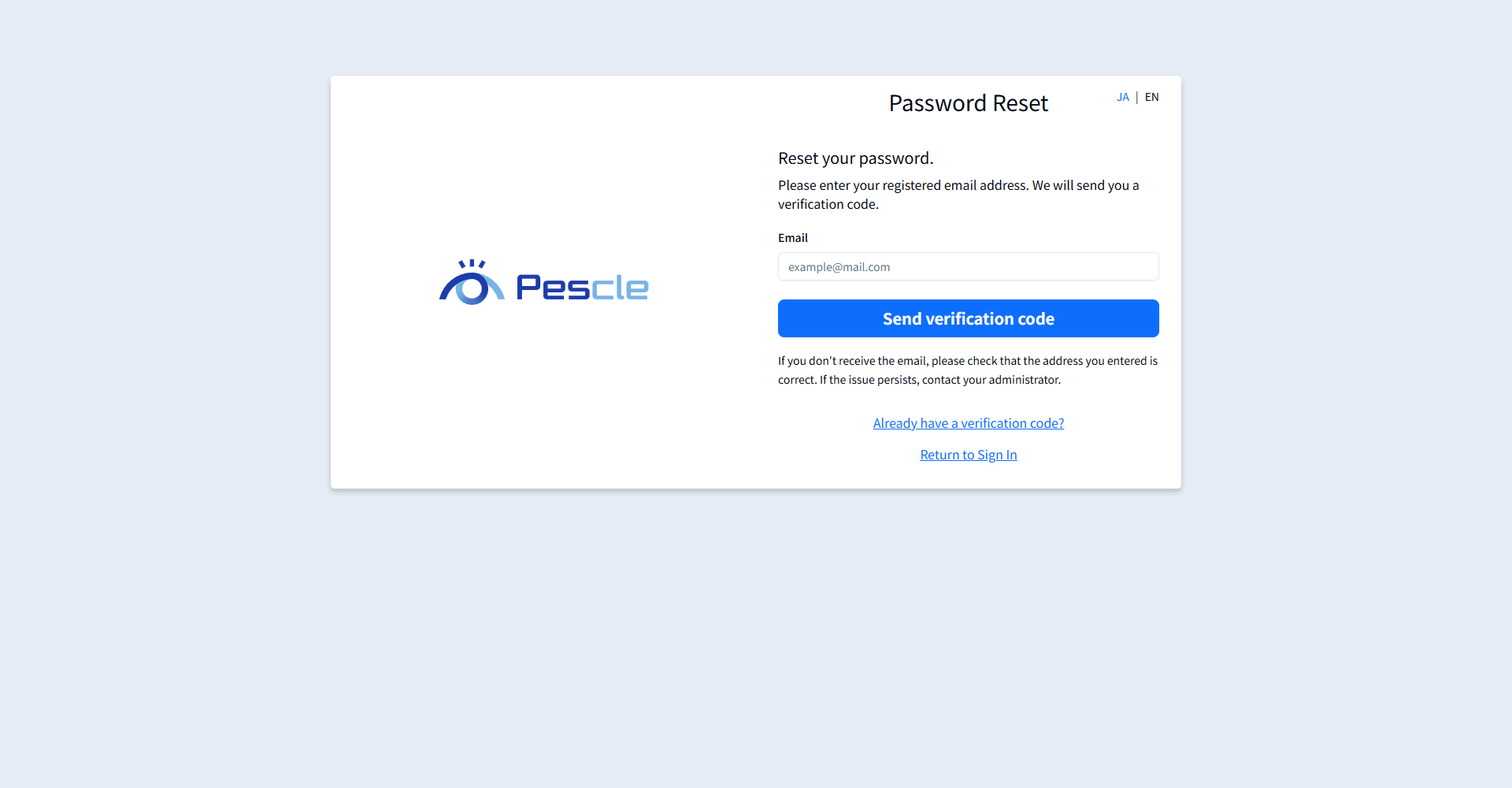
Send a Verification Code
Enter your registered email address and click the [Send verification code] button. A verification code to confirm your identity will be sent to you by email.
Set a New Password
Enter your email address, the verification code, and your new password, then click the [Update password and sign in] button. Passwords must be at least 8 characters long and contain at least one uppercase letter, one lowercase letter, and one number.
If you don’t receive the email, please check that the address you entered is correct. If the issue persists, contact your administrator.