Managing the Device List
Project administrators can check the status of the devices in the project in [Device List] under [Project Management] in the side menu.
Reading the List
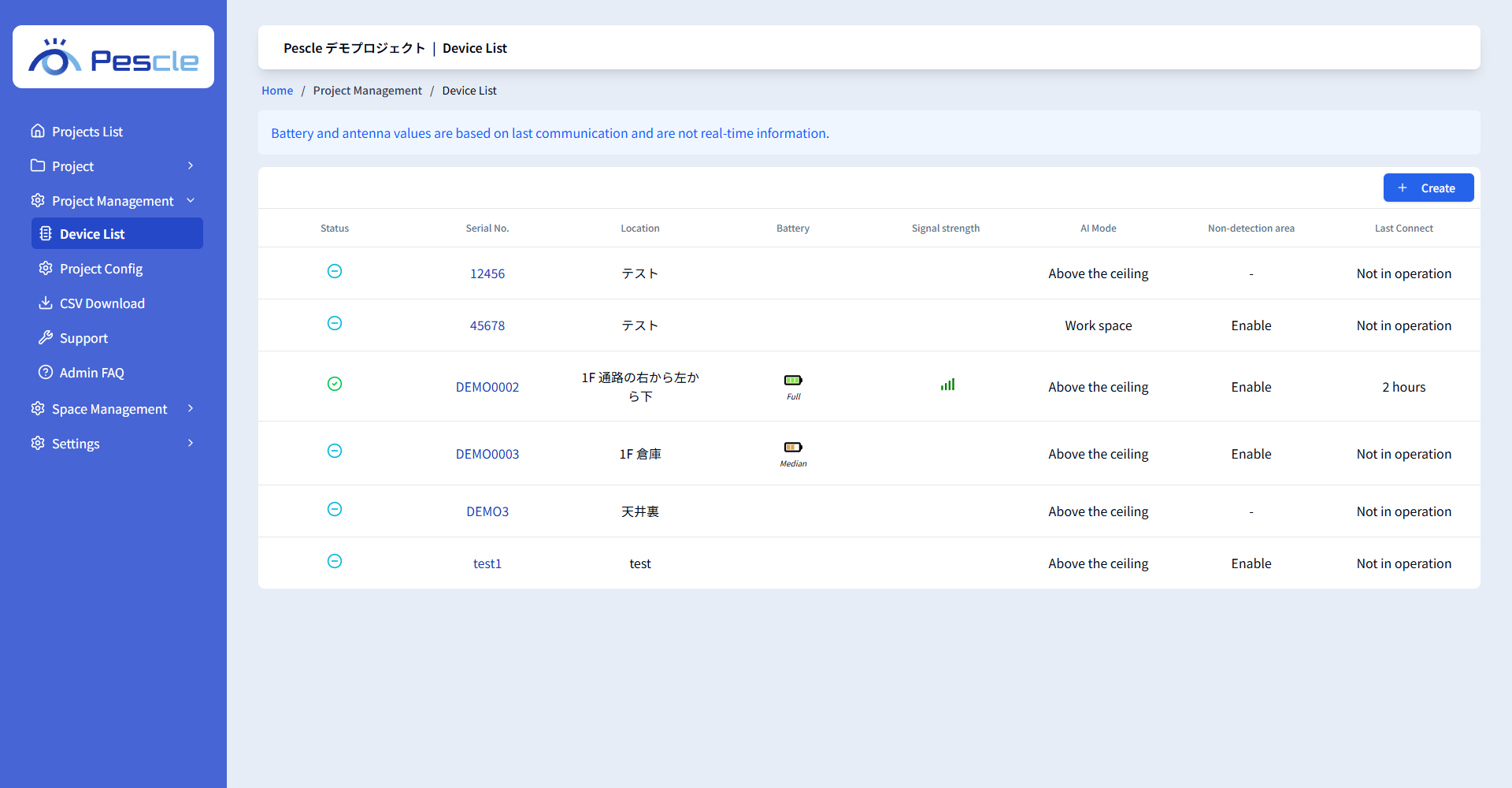
Item |
Description |
|---|---|
Status |
The operating status of the device (normal, error, or not in operation). |
Serial No. |
The ID of the device. Click it to open the device detail. |
Location |
The location set when the device was registered. |
Battery |
The remaining battery level. |
Signal strength |
The strength of the mobile signal. |
AI Mode |
The current AI mode (Above the ceiling, Attic (high sensitive), or Work space). |
Non-detection area |
Whether a non-detection area is set. |
Last Connect |
The date and time the device last communicated. |
Battery and antenna values are based on the last communication and are not real-time information. If there is a problem with the device status or settings, a warning is displayed at the top of the screen. Check the message and take action.
Viewing Device Details
Click a serial number in the list to open the device detail screen. In addition to the basic information, you can view a graph of the received file count and the field of view, installation, and latest images.
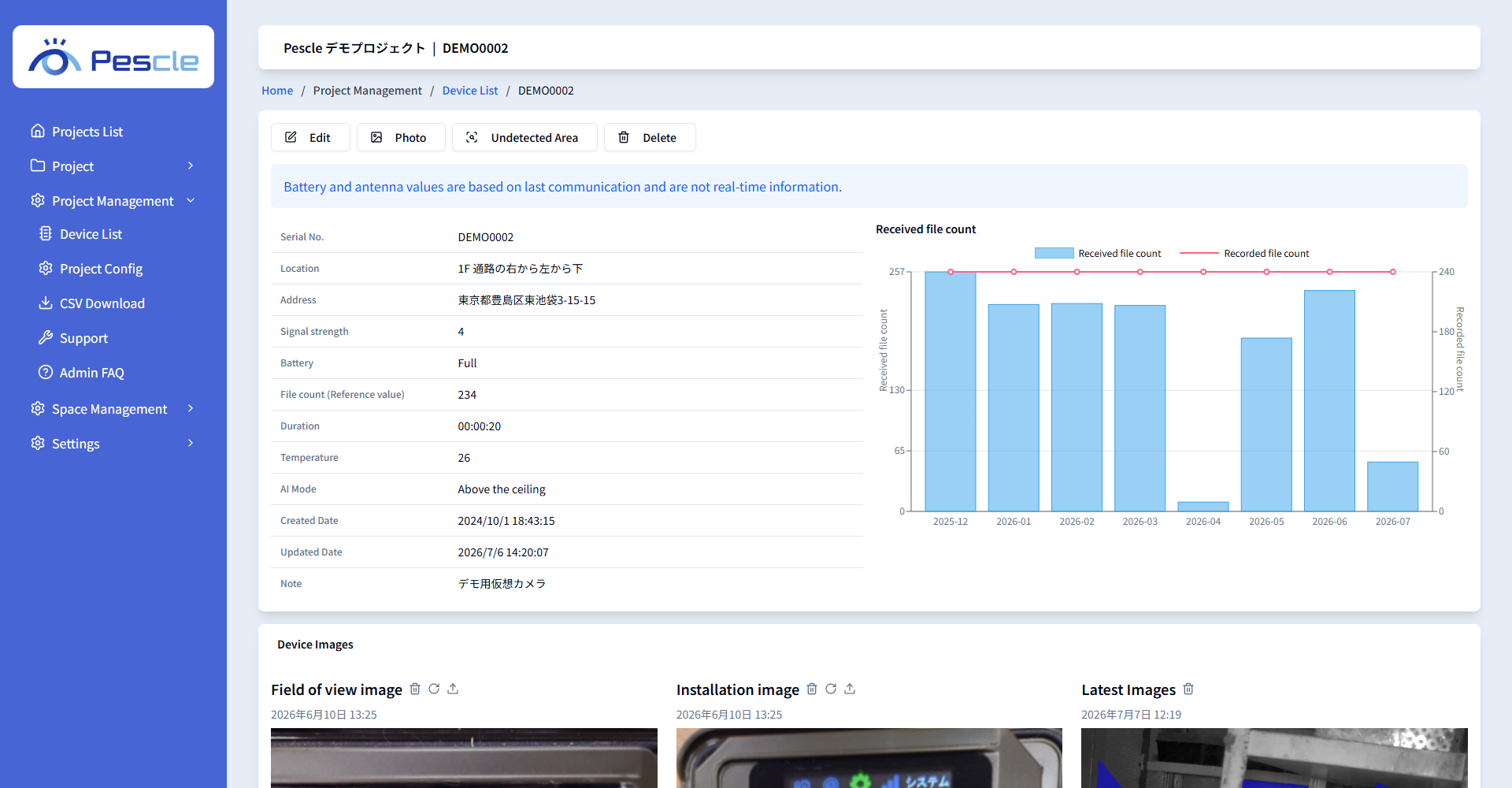
Use the buttons at the top of the screen to perform each operation.
Button |
Description |
|---|---|
Edit |
Edits the device information. (Registering, Editing, and Deleting Devices) |
Photo |
Uploads the field of view image and installation image. (Uploading Field-of-View Images) |
Non-detection area |
Sets the non-detection area. Displayed only when a latest image exists. (Setting a Non-detection Area) |
Delete |
Deletes the device. |