Registering, Editing, and Deleting Devices
Project administrators register, edit, and delete devices from [Device List] under [Project Management].
Registering a Device
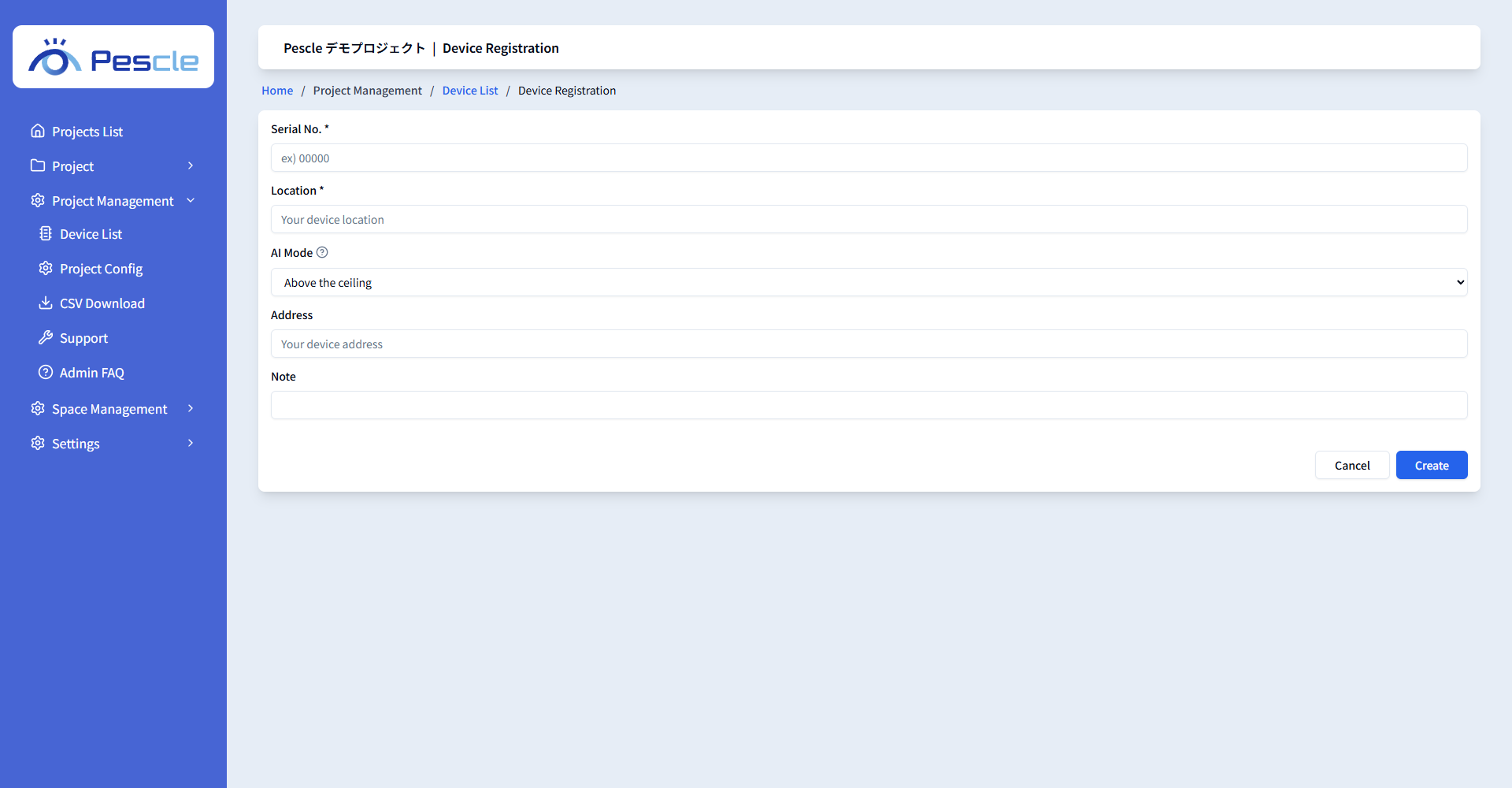
Click the [Sensor Device Registration] button in the device list to open the device registration screen. Fill in each field and click the [Create] button.
Item |
Description |
|---|---|
Serial No. (required) |
The serial number unique to the device. Enter exactly 5 one-byte alphanumeric characters. A number that is already registered cannot be used. |
Location (required) |
The location where the device is installed. |
AI Mode (required) |
Select from Above the ceiling, Attic (high sensitive), or Work space. (Setting the AI Mode) |
Address |
The address of the installation site. |
Note |
A free text field. |
Editing a Device
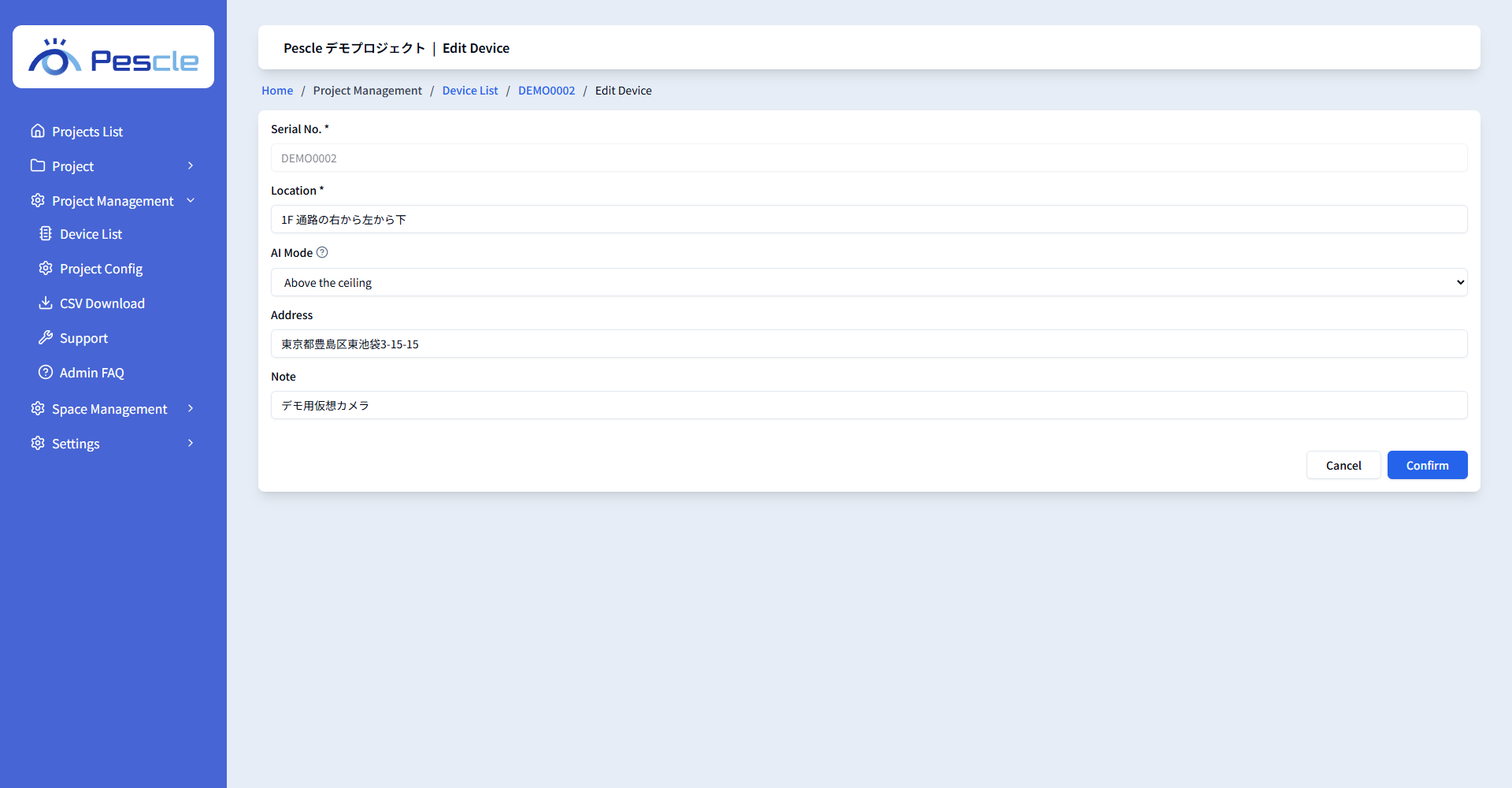
Click the [Edit] button on the device detail screen to open the device edit screen. The serial number cannot be changed. Modify the fields you want to change and click the [Confirm] button.
Deleting a Device
Click the [Delete] button on the device detail screen to display a confirmation dialog.
Performing this operation will delete all data associated with the sensor.
Review the message and execute the deletion. Deleted data cannot be restored.