Enable Multi-Factor Authentication (MFA)
We strongly recommend using multi-factor authentication for Pescle Rodents. Once enabled, signing in requires a verification code from an authenticator app in addition to your password, which improves the security of your account.
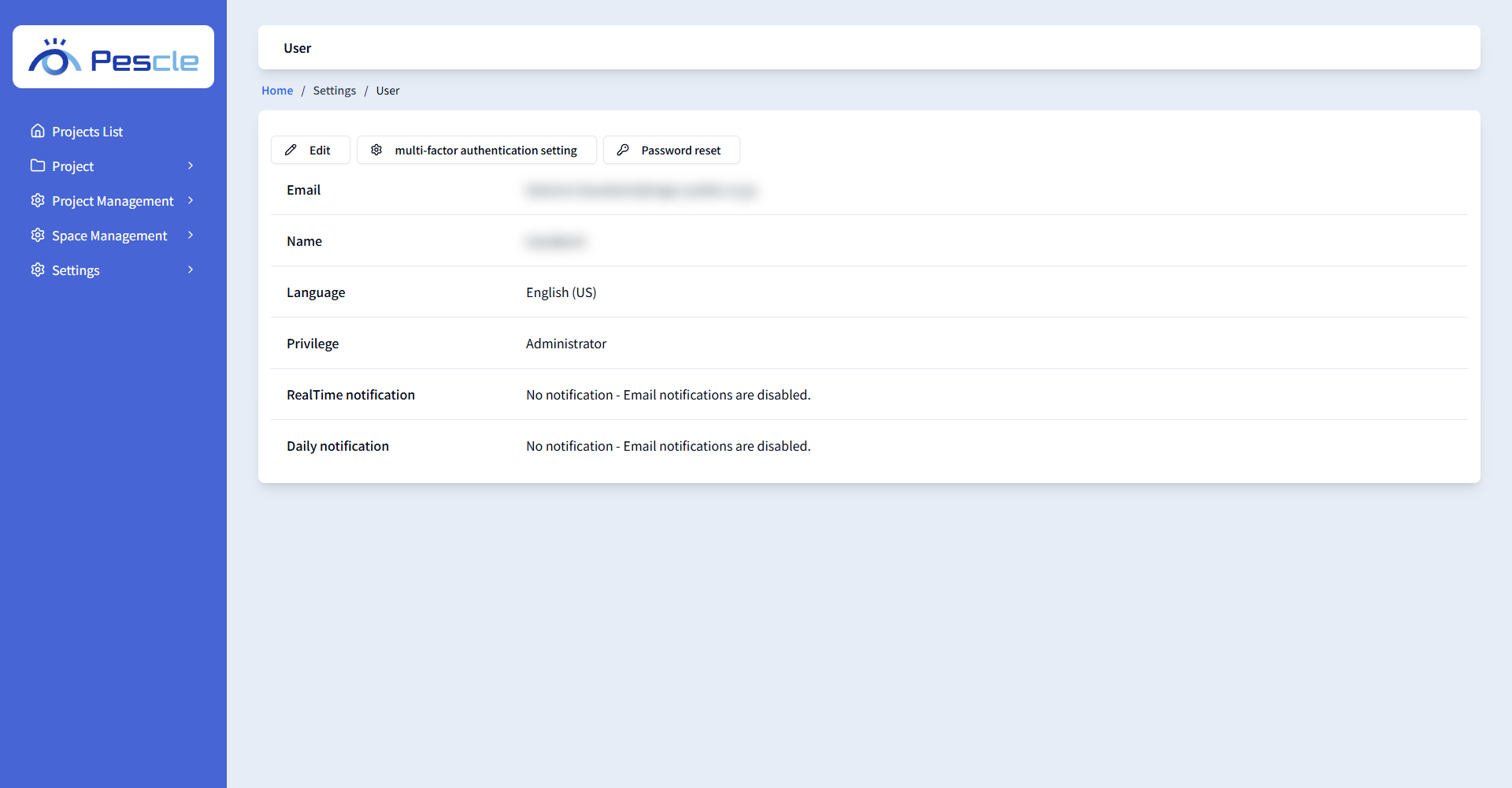
Open the Settings Screen
Open [User] from the menu at the top right of the screen, then click the [multi-factor authentication setting] button.
Set Up the Authenticator App
Install the Authenticator App
Use the Google Authenticator app for multi-factor authentication. Please install the app on your smartphone.
Scan the 2D Code
Use the authenticator app to scan the 2D code.
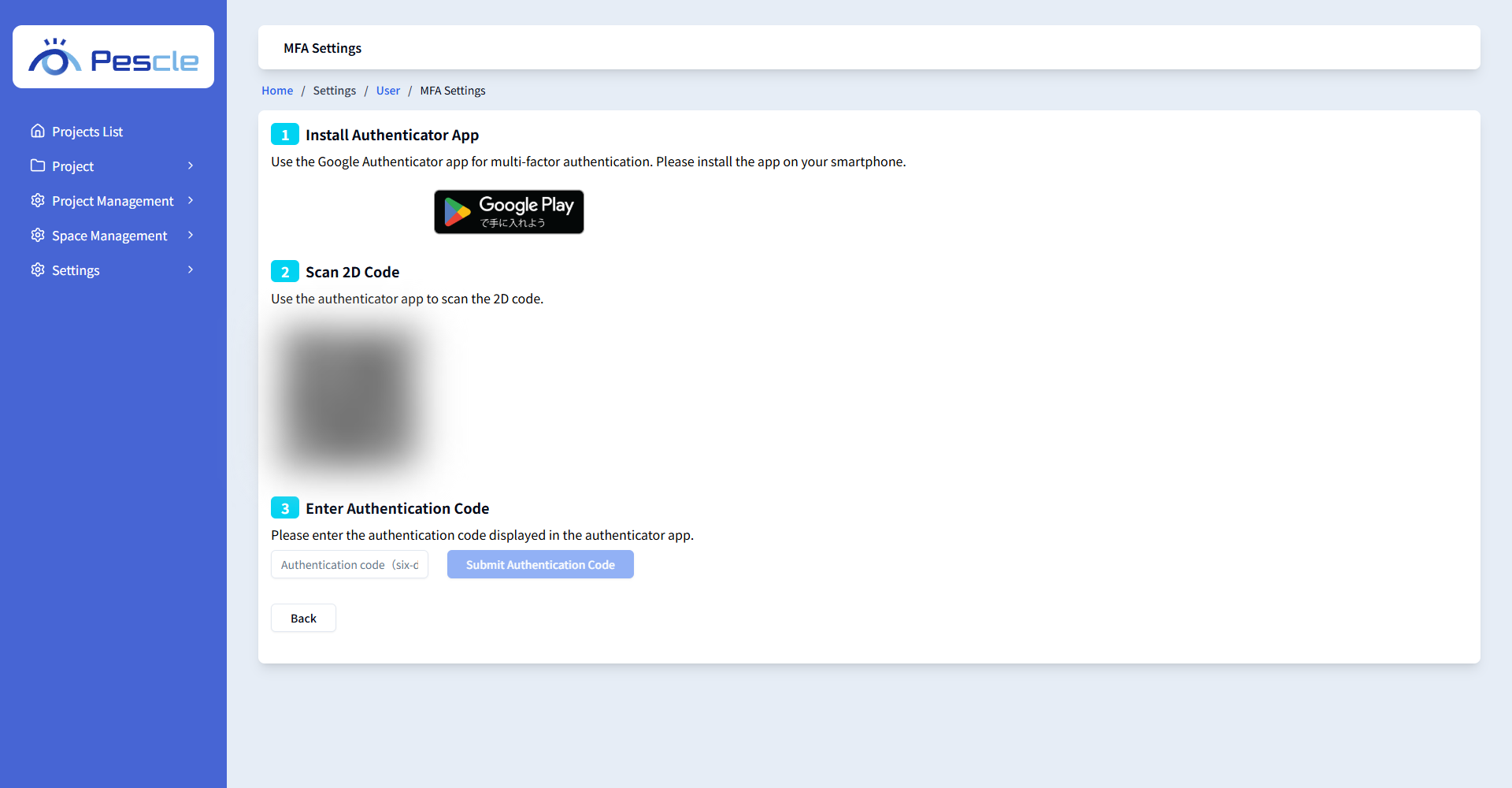
Enter the Authentication Code
Please enter the authentication code displayed in the authenticator app.
Field |
Description |
|---|---|
Authentication code(six-digit figure) |
Enter the six-digit number displayed in the authenticator app. An error will occur if you enter anything other than 6 digits. |
After entering the code, click [Submit Authentication Code] to complete the multi-factor authentication setup.
If You Want to Disable Multi-Factor Authentication
You can disable it from [Cancellation of multi-factor authentication] on the user screen. However, the authentication code you are currently using will no longer work after disabling it, and you will need to set it up again to use it. We recommend continuing to use multi-factor authentication with Pescle Rodents.